 co-life
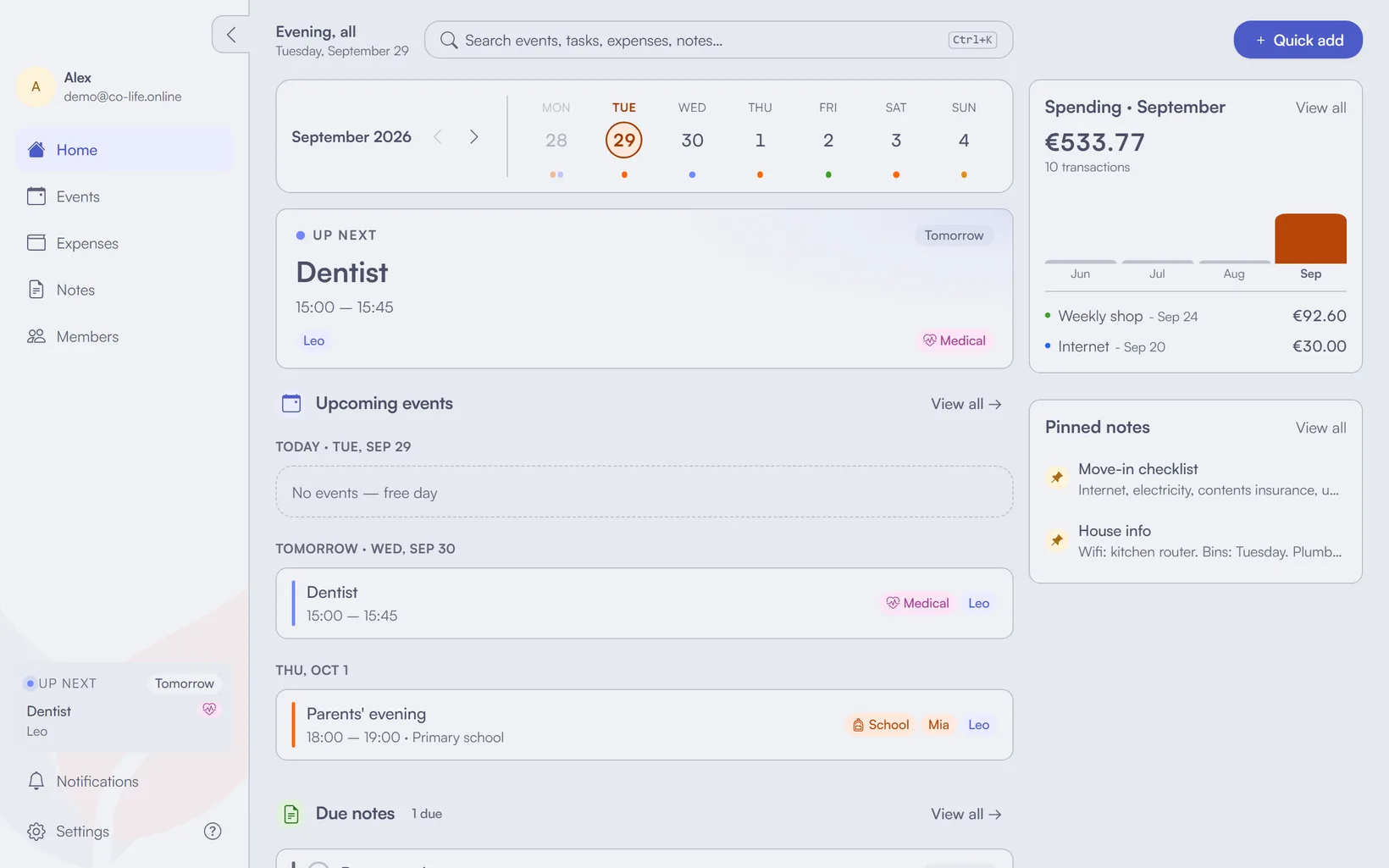
co-life isn't in the App Store or Google Play, and it doesn't need to be. It's a web app: you install it straight from your browser, and it lands on your home screen, dock or taskbar with its own icon, opens in its own window, and can send you reminders like any other app. It takes under a minute on each device.
This guide covers every common setup: iPhone and iPad, Android, and Windows or Mac computers. It also covers the two things people miss afterwards, which are signing in inside the installed app and turning on notifications.
Before you start
- Have your account ready. If someone in your household invited you, finish setting up from the email they sent first. Installing doesn't create an account, it just gives the one you have a better home.
- Use the phone's real browser. Safari on iPhone, Chrome on Android. If you tapped a co-life link inside Gmail, WhatsApp, Instagram or Messenger, you're probably in that app's built-in browser, which can't install anything. Look for Open in Safari or Open in Chrome first.
- Skip private windows. Incognito and private tabs usually hide the install option.
The short version
| Device | Browser | Where the install button is |
|---|---|---|
| iPhone / iPad | Safari | Share → Add to Home Screen |
| iPhone / iPad | Chrome or Edge | Share icon in the address bar → Add to Home Screen |
| Android | Chrome | ⋮ menu → Install and create shortcut → Install |
| Android | Samsung Internet | ☰ menu → Add page to → Home screen |
| Windows / Mac | Chrome | Install icon at the right of the address bar, or ⋮ → Cast, save, and share → Install page as app |
| Windows / Mac | Edge | App available icon in the address bar, or ⋯ → More tools → Apps → Install this site as an app |
| Mac | Safari | File → Add to Dock |
The rest of this guide goes through each one step by step.
How to install co-life on iPhone and iPad
- Open Safari and go to co-life.online.
- Tap the Share button. On recent iOS versions it sits behind the ••• button next to the address bar; on older versions it's the square with an arrow pointing up, in the toolbar.
- Scroll down the list and tap Add to Home Screen.
- If you see Open as Web App, leave it switched on. That is what makes co-life open in its own window instead of a Safari tab.
- Tap Add. The co-life icon appears on your home screen.
Don't see Add to Home Screen? Scroll to the very bottom of the share list, tap Edit Actions, and add it from there. Apple hides it on some phones.
Chrome or Edge on iPhone work too (iOS 16.4 or later): tap the Share icon in the address bar, then Add to Home Screen. The result is the same app either way.
Sign in once more inside the app
On iPhone and iPad, the installed app keeps its own sign-in, separate from Safari, so the first time you open it from the home screen you'll see the sign-in page again. That's expected. Sign in with your password or Google inside the app. An emailed sign-in link opens in Safari, not in the installed app, so it would leave the app itself signed out.
How to install co-life on Android
Chrome
- Open Chrome and go to co-life.online.
- Tap the ⋮ menu at the top right.
- Tap Install and create shortcut. (Older Chrome versions call it Add to home screen or Install app; it's always in this menu.)
- Choose Install, not Create shortcut. A shortcut only opens co-life in a Chrome tab.
- Confirm with Install in the Install app box.
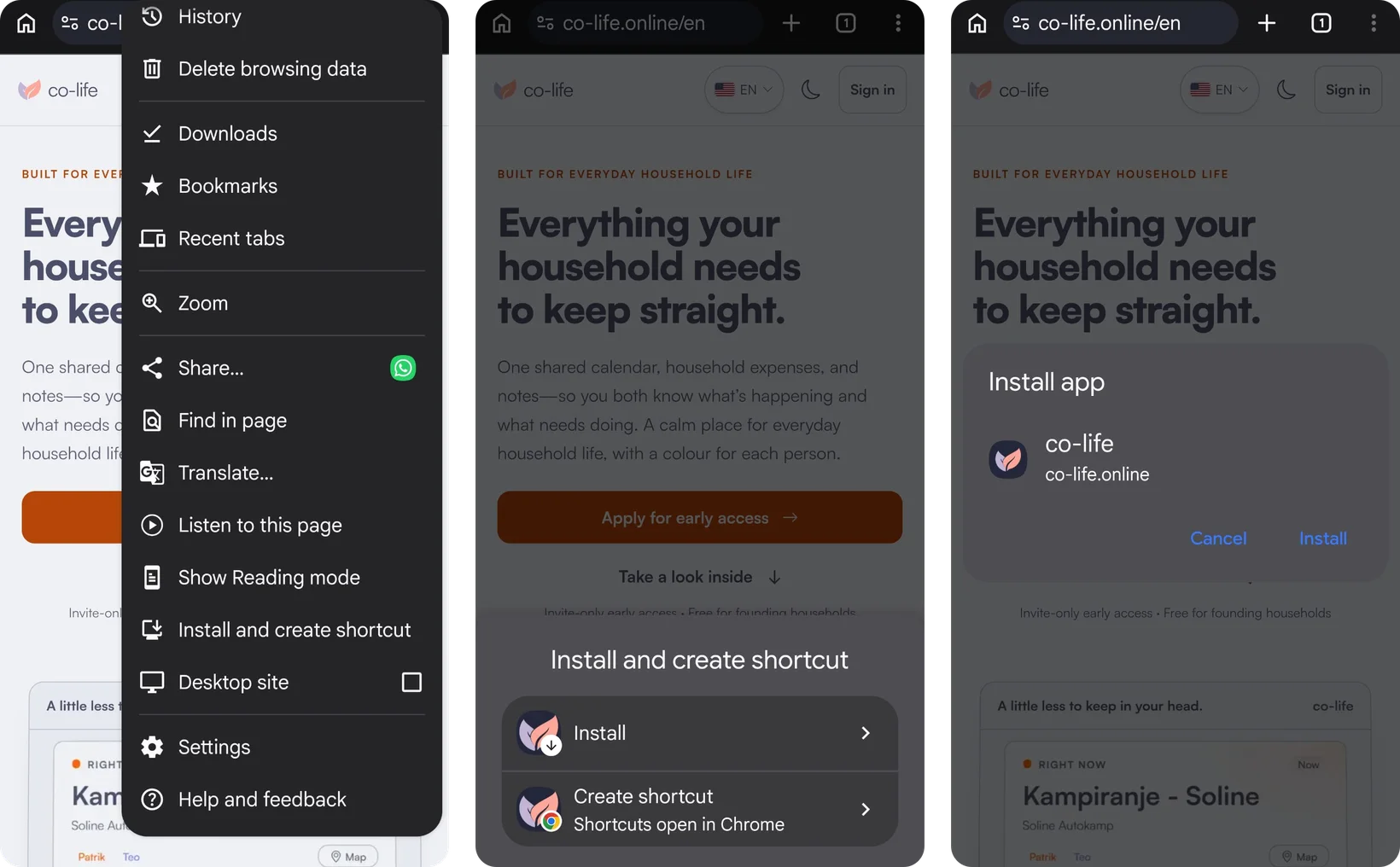
co-life then shows up on your home screen and in your app drawer like any other app, and it shares your Chrome sign-in, so you're usually already logged in.
Samsung Internet
- Open co-life in Samsung Internet.
- Tap the ☰ menu at the bottom right.
- Tap Add page to, then Home screen, then Add.
If a small install icon appears in the address bar, tapping it does the same thing.
How to install co-life on a Windows PC or Mac
On a laptop or desktop, installing gets co-life out of your pile of browser tabs: it gets its own window, its own taskbar or Dock icon, and you can reach it with Alt+Tab (Cmd+Tab on a Mac).
Chrome (Windows and Mac)
- Open co-life.online in Chrome.
- Click the install icon at the right end of the address bar, a small monitor with a downward arrow. If you don't see it, open the ⋮ menu and choose Cast, save, and share → Install page as app.
- Click Install in the Install app box.
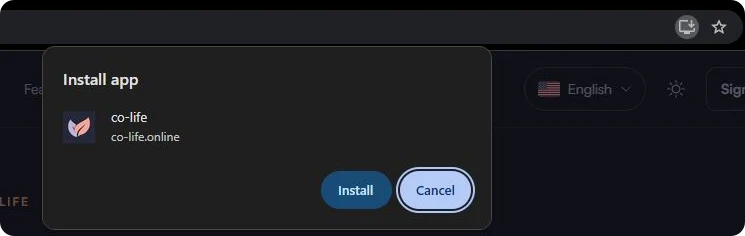
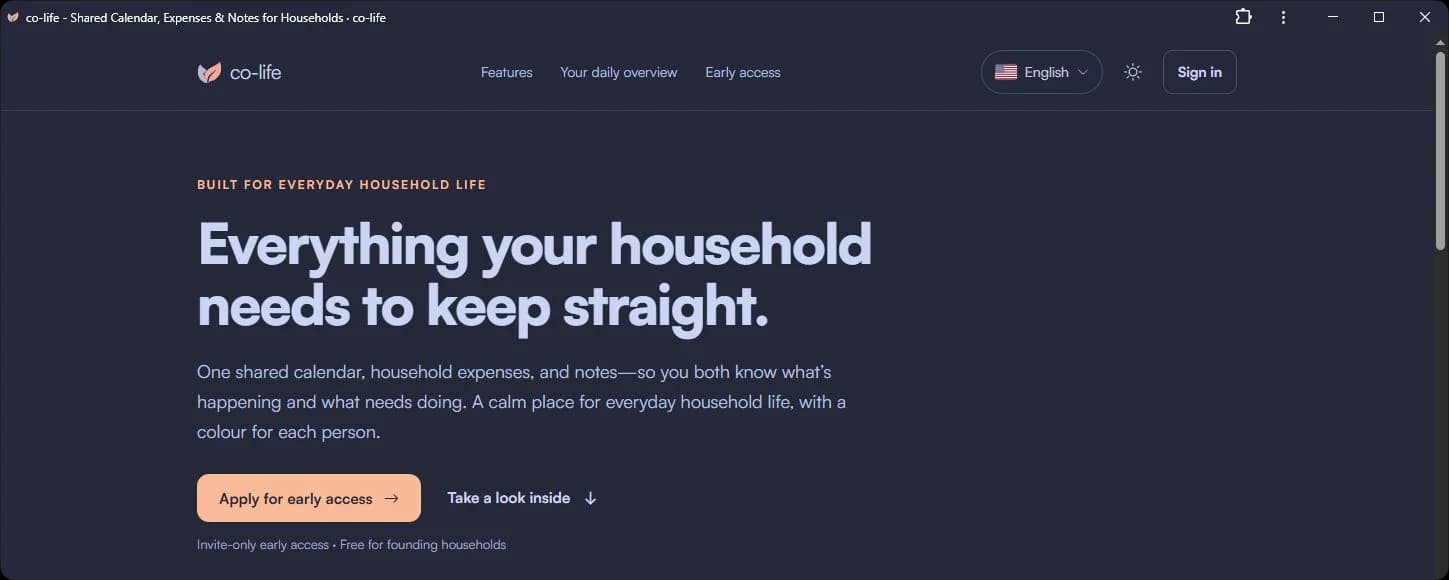
co-life opens straight away in its own window, with no tabs or address bar, and gets its own icon in the Start menu, taskbar or Dock.
Microsoft Edge (Windows and Mac)
- Open co-life.online in Edge.
- Click the App available icon in the address bar, or open the ⋯ menu and choose More tools → Apps → Install this site as an app.
- Click Install. Edge offers to pin co-life to the taskbar and Start menu, which is worth a yes.
Safari (Mac)
On macOS Sonoma or later:
- Open co-life.online in Safari.
- From the menu bar, choose File → Add to Dock. The Share button in the toolbar has the same option.
- Keep the name "co-life" and click Add.
Firefox
On Windows, recent Firefox versions can pin a site to the taskbar from a button in the address bar. It works, but you get a slimmed-down Firefox window rather than a full install. On a Mac, Firefox can't install web apps at all, so use Safari, Chrome or Edge for co-life.
After installing: turn on reminders
Installing is half of it. The part that makes co-life useful on a phone is getting a nudge before an event instead of remembering to open the app.
- Open co-life from its new icon, not from a browser tab.
- Go to Settings → Notifications.
- Under Push on this device, tap Enable on this device and allow notifications when your phone or browser asks.
- Tap Send test to check it arrives.
Do this on each device you want reminders on, because push is set up per device, not per account. Email reminders don't need any of this. They go to your inbox either way.
On iPhone and iPad, push notifications only work in the installed app. In a normal Safari tab the option isn't available at all, and co-life tells you to add it to your Home Screen first. If you installed it and still get nothing, check that you opened co-life from the home-screen icon when you enabled push.
Updates happen by themselves
There's nothing to update by hand. When a new version of co-life ships, the installed app picks it up the next time you open it, the same way a website does. You also don't have to worry about storage: the app itself is tiny, and your household's calendar, expenses and notes stay on our EU servers rather than piling up on your phone.
One thing it won't do is work fully offline. The app opens without a signal so it doesn't look broken, but showing your household's data needs a connection.
Troubleshooting
There's no install option anywhere. Nine times out of ten you're in an in-app browser (a link opened from email, WhatsApp or social media) or a private window. Open co-life in Safari or Chrome directly and try again.
The icon opens a normal browser tab. On iPhone, remove the icon and add it again with Open as Web App switched on. On Android, you probably chose Create shortcut, which opens in Chrome. Remove it and go through Install and create shortcut → Install instead.
It asks me to sign in again after installing. On iPhone and iPad this is normal the first time, because the installed app has its own sign-in. Sign in once inside the app with your password or Google, and it will remember you from then on.
How do I uninstall it?
- iPhone / iPad: press and hold the icon, then choose Remove App or Delete.
- Android: press and hold the icon, then Uninstall or drag it to Remove.
- Chrome on a computer: open co-life, click ⋮ at the top of its window, then Uninstall co-life.
- Edge: go to
edge://apps, open Details on co-life, then Uninstall. - Safari on a Mac: drag co-life out of the Dock, then delete it from the Applications folder in your home folder.
Uninstalling only removes the icon. Your household's data stays in your account.
That's it
Put co-life on the phone you carry and the computer you plan on, turn on reminders, and a shared calendar stops being something you have to remember to check. If you're not sure how to set up that calendar yet, how to share one calendar with your partner is a good place to start.