 co-life
Most homes have one: the tablet that got replaced, now living in a drawer with a flat battery. Meanwhile the ads keep showing you a $300 calendar frame for the kitchen wall. The good news is that the tablet you already own can do most of that job. This guide shows you how to turn an old iPad or Android tablet into a family wall calendar: how to check whether your model is new enough, how to set it up in about a minute, and how to keep it on the wall without it becoming one more thing to look after.
The point of a calendar on the wall is simple. Everyone in the house sees today without opening an app: who has swimming, when the plumber is coming, what's due tomorrow. Nobody has to be the person who remembers.
First, check your tablet will work
Most guides skip this part, and it's the one that decides everything. A wall calendar runs in the tablet's web browser all day, so the browser has to be recent enough.
iPad: you need iPadOS 16.4 or later. That covers:
- iPad (5th generation, from 2017) and every newer iPad
- iPad Air (3rd generation) and newer
- iPad mini (5th generation) and newer
- every iPad Pro
The iPad Air 2, iPad mini 4 and anything older stopped getting updates before 16.4, so they can't run it. To check yours, open Settings, then General, then About and look at the iPadOS version. If it's older than 16.4, Settings, then General, then Software Update will tell you whether a newer version is available.
Android tablet: what matters is Chrome, not Android. Any tablet that still gets Chrome updates is fine. Open Chrome, then Settings and About Chrome: version 111 or newer works.
Amazon Fire tablets: honestly, we haven't tested them yet. Their Silk browser may work, but we can't promise it.
If your tablet is on the list, you don't need to buy anything except, perhaps, a wall mount.
Set it up in five steps
This is how it works with co-life's wall display. There's no app to install on the tablet and, more importantly, nobody signs in on it.
- Open the wall page on the tablet. In Safari or Chrome, go to
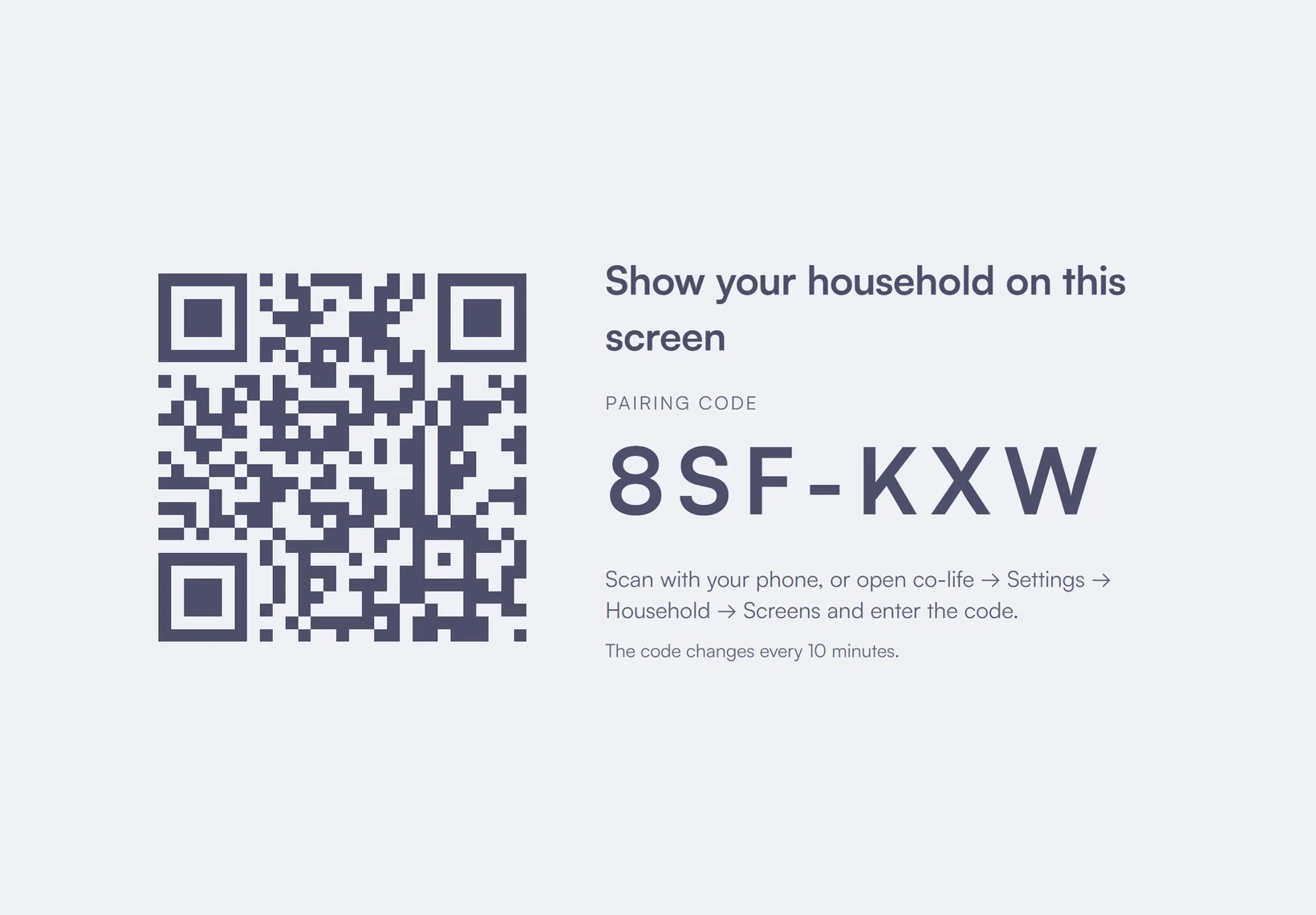
co-life.online/wall. The tablet shows a six-character pairing code and a QR code. The code changes every ten minutes, so there's no rush and no risk in leaving it on screen. - Scan the code with your phone. Use your phone's camera on the QR code while you're signed in to co-life. If scanning is awkward, open co-life on your phone, go to Settings, then Household, then Screens, and type the code in.
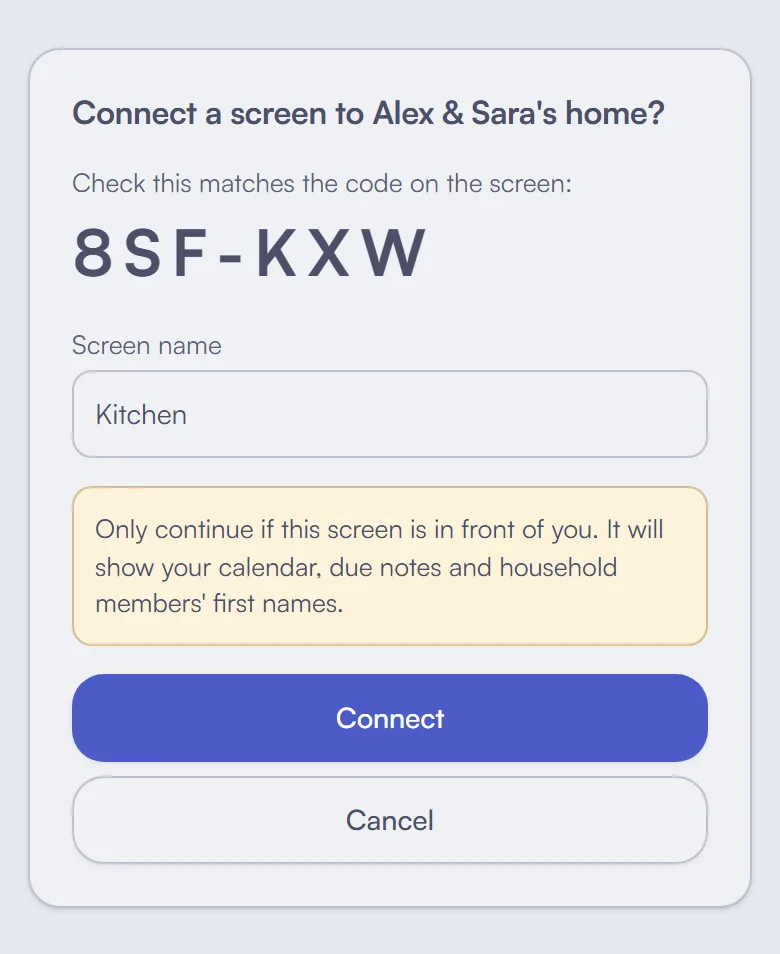
- Check the code, name the screen, connect. Your phone shows the code again so you can check it matches the one on the tablet, asks for a name ("Kitchen" is the default) and tells you exactly what the screen will show. Tap Connect and the tablet switches to your household's day within a few seconds.
- Keep the screen on. Plug the tablet in, then turn off auto-lock. On an iPad that's Settings, then Display & Brightness, then Auto-Lock, then Never. On Android it's Settings, then Display, then Screen timeout, or Stay awake while charging in Developer options. The tablet reminds you of this the first time.
- Put it where people walk past. More on that below, but the short version is: kitchen or hallway, at eye height, next to a socket.
That's it. From now on, anything anyone adds on their phone appears on the wall within a couple of minutes.
What it shows (and what it never shows)
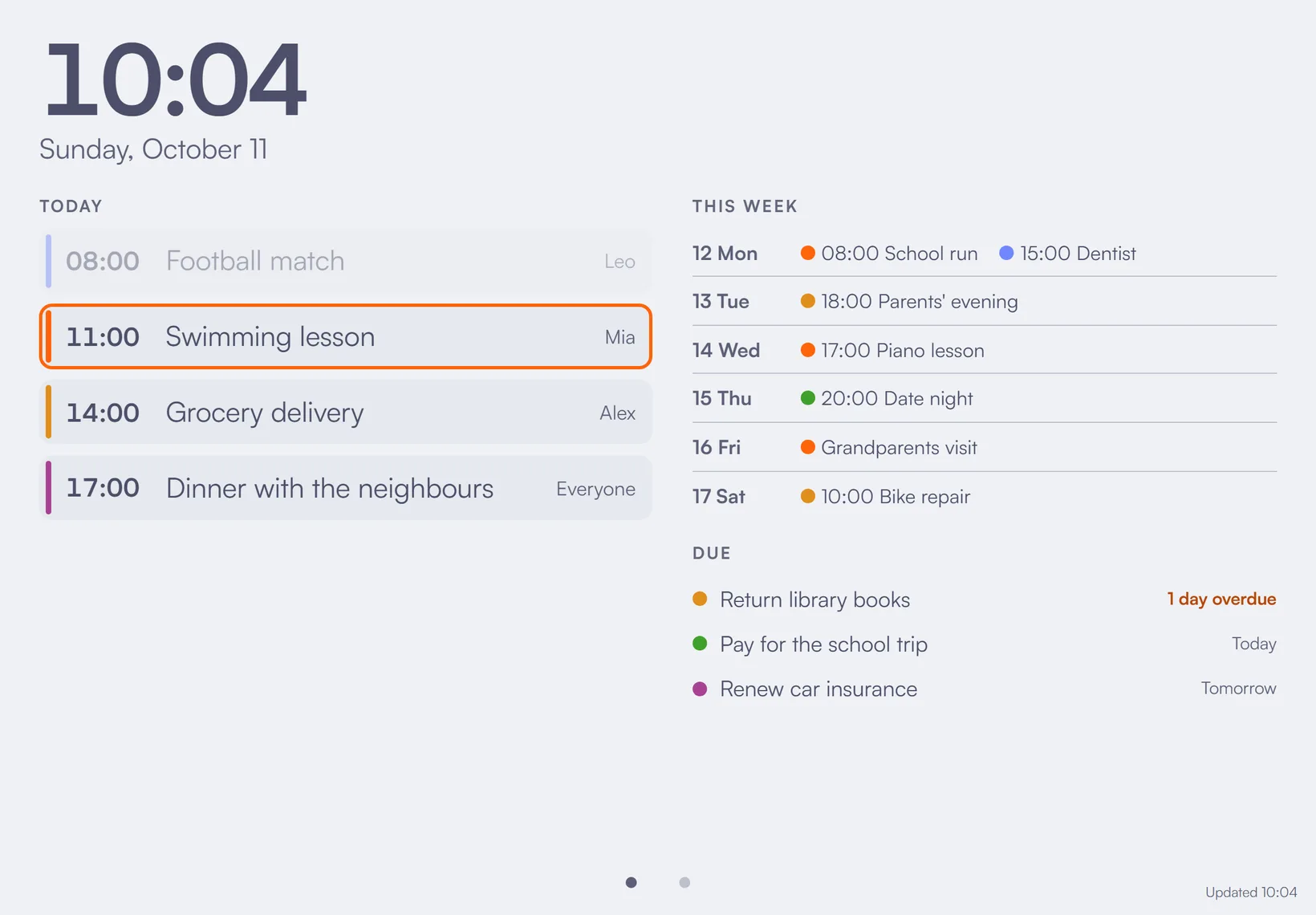
The home view is today: every event with its time, title and who it's for, in each person's colour. Whatever is happening now or next is highlighted, and the morning's finished events fade back so the eye lands on what's still ahead. Beside it are the rest of the week, one line per day, and the notes that are overdue or due in the next couple of days. If you've turned on public holidays for your country, they show up too.
Swipe sideways and you get the next seven days as a board, one column per day. It's the view to glance at on a Sunday evening.
The screen updates itself every couple of minutes. If the Wi-Fi drops, it keeps showing the last thing it knew with a small "Offline since" note, and catches up as soon as the connection is back. You never have to touch it.
Just as important is what it leaves out. A tablet on the kitchen wall is a shared device: guests see it, the kids' friends see it, a babysitter sees it. So the wall display shows the calendar, what's due and people's names, and nothing else. No expenses, no member details, no ID numbers, no locations. It's read-only, and because nobody is signed in on the tablet, there's no account behind it for someone to wander into. That's the real difference from the free route of signing the tablet in to your own calendar account.
If the tablet ever goes missing, or you just don't want it any more, open Settings, then Household, then Screens on any phone and tap Disconnect. The tablet goes straight back to showing a pairing code, and everyone else in the household gets a notification, so nobody connects or removes a screen without the others knowing.
Make it part of the kitchen
A few things make the difference between a screen people actually look at and a gadget that gets switched off in a month.
Placement. Put it where everyone passes at least twice a day: next to the fridge, by the front door, at the end of the kitchen counter. Eye height for adults, low enough for kids to read. Landscape or portrait both work, so pick whichever fits the wall.
Mounting. A simple tablet wall mount or a stand on the counter is enough. Plan the cable first: a right-angle cable, or a socket directly below the mount, keeps it tidy. A tablet that has to be unplugged to clean behind it will end up in the drawer again.
Lock it to the calendar. If small hands can reach it, stop them wandering off into games. On an iPad, turn on Guided Access (Settings, then Accessibility, then Guided Access), open the wall page and triple-click the side or home button: the tablet stays on that one page until you enter the code. Most Android tablets have app pinning, which does the same; search your Settings for "pinning".
Night mode. From 22:00 to 06:30 by default, the screen dims to a quiet clock with the first thing tomorrow underneath, so it doesn't light up the kitchen and the evening question "what time do we need to leave?" answers itself. Tap it and the calendar comes back for a minute. You can change the hours, and the screen's language, under Settings, then Household, then Screens, then Edit.
Battery. A tablet plugged in all day is fine, but if yours has a battery-protection setting that stops charging at around 80 to 85 percent, turn it on. Many Android tablets have one.
Where the calendar comes from
The wall shows your co-life household calendar, the same one everyone sees on their phone. If you haven't set one up yet, the guide to sharing one calendar with your partner is the place to start. If your events live in Google Calendar, co-life's two-way sync brings them in, and the guide to syncing Google, Apple and Outlook calendars explains the options.
School dates are where a wall calendar earns its place, because that's where "I thought you knew" happens most. Getting school dates into a shared calendar covers feeds, term-date PDFs and photographing the letters in the bag.
What else is out there
A wall calendar is a crowded corner, and some of the options are free. Prices below are US prices at the time of writing.
- Skylight Calendar is the best-known frame: about $300 for the 15-inch model, with extras like Magic Import, meal planning and chore rewards in the Skylight Plus plan at $79 a year. If you want photos, chores and meals on the same screen and don't mind buying hardware, it's polished.
- Hearth Display is a larger screen at around $700, and it needs a Family Membership to set up, from $9 a month or $86.40 a year.
- DAKboard has a free plan with one predefined screen, and paid plans from $5 a month billed yearly. You bring your own screen or buy theirs; it suits people who like to tinker with layouts.
- iPad apps like FamilyBoard and Mango Display read the calendars already on the iPad and lay them out for the wall.
- The free route: create a separate Apple Account for the tablet, share your calendars with it read-only, and leave the Calendar app open. It costs nothing and works on very old iPads. The catch is that the Calendar app is designed to be read at arm's length, not from across the kitchen, it shows no to-dos, and the tablet is signed in to an account.
- MagicMirror on a Raspberry Pi is the build-it-yourself classic, if building it is half the fun.
co-life's angle is that the wall is just one more view of a household you already run together: the same calendar, notes and reminders everyone uses on their phone, shown on a tablet you already own, with nothing private on the screen.
The short version
Check your tablet is on iPadOS 16.4 or has a current Chrome. Open co-life.online/wall, scan the code with your phone, turn off auto-lock and put it where everyone walks past. That's a family wall calendar for the price of a wall mount.
If you'd like your household's day on the kitchen wall, give co-life a try. It's free to start, EU-hosted, and made for everyone who shares a home.