 co-life
Every September the same thing happens. The school sends the term dates, the class sets up a group chat, and by October the bag has produced a letter about a trip, a non-uniform day and a parents' evening. Each of those dates belongs in your calendar, and most guides on how to add school dates to a family calendar answer with one method: add the school calendar to Google Calendar and you are done.
That works for some of the dates. It misses most of the ones that actually catch families out, because school dates don't arrive in one shape. They arrive in three, and each shape has a different right answer. This guide goes through all three, and then the part nobody covers: getting the dates in front of both of you, not just whoever happened to open the bag.
School dates come in three shapes
| Shape | What it looks like | What to do |
|---|---|---|
| A live feed | A "Subscribe" or "iCal" link on the school or district website | Subscribe to it, so changes arrive by themselves |
| A file that won't change | The term-dates PDF, a timetable | Import it once, or photograph it |
| Paper and messages | The letter in the bag, a party invite, a screenshot from the class chat | Photograph it and keep the dates you want |
The first shape gets all the attention, because it is the one a calendar app can do something clever with. The third is the one that fills your week. Nobody publishes a feed for the swimming kit reminder, the cake sale or the birthday party at the trampoline park, and that is exactly where the "I thought you knew" moments come from.
If the school has a calendar feed: subscribe to it
Look on the school or district website for a calendar page with a link labelled Subscribe, iCal, Add to calendar, or an address starting with webcal:// or ending in .ics. If there is one, subscribing is the best option there is: when the school moves a date, your calendar follows.
Don't be surprised if there isn't. Feeds are common with school districts in the US and with some schools in the UK, but in many countries schools publish nothing of the kind, and every date arrives as a letter, a PDF or a message. If that's your school, skip ahead: the next two sections are the ones that matter.
In Google Calendar, do this on a computer:
- Copy the feed's link from the school website.
- In Google Calendar, next to Other calendars, click the + and choose From URL.
- Paste the link and click Add calendar.
On an iPhone or iPad, tapping a webcal:// link usually offers to subscribe straight away. If it doesn't, add it in the Calendar settings under Calendar Accounts, then Add Account, Other and Add Subscribed Calendar. On a Mac, use File and then New Calendar Subscription in the Calendar app.
Two things to know before you rely on it.
A subscription is read-only, and it is yours alone. You can't add notes to the school's events, and subscribing in your account does nothing for your partner. They need to subscribe too, in their own calendar, or the dates only ever appear on one phone.
It isn't instant. Google doesn't publish how often it rechecks a subscribed calendar and offers no button to force it. In practice a change can take up to a day to show up. For a date that moved this morning, the school's own message is still the source of truth.
If you want the longer version of subscribing versus syncing, the guide to syncing Google, Apple and Outlook calendars covers it.
Term dates and timetables: import them once
Plenty of schools publish their dates as a PDF or a page on the website rather than a feed. Those dates are set for the year, so a one-off copy in your calendar is fine.
If the school offers an .ics file, import it: in Google Calendar that is Settings, then Import & export; in co-life it is Settings, then Events, then Import. co-life shows you every event before anything is saved, and if the school sends an updated file later, events you already imported are recognised and skipped rather than doubled.
If the term dates only exist as a PDF or a table on a web page, take a screenshot and treat it like the letters in the next section. That is quicker than typing twenty dates, and far less error-prone.
Letters, flyers and chat messages: photograph them
This is the shape that fills the calendar, and the one where typing is the real enemy. A trip letter has a date, a time to be at school, a return time, a payment deadline and a "bring a packed lunch" line. Copying that by hand is how the deadline ends up in nobody's calendar.
In co-life, scanning works the same way for a letter, a flyer or a screenshot of a chat message:
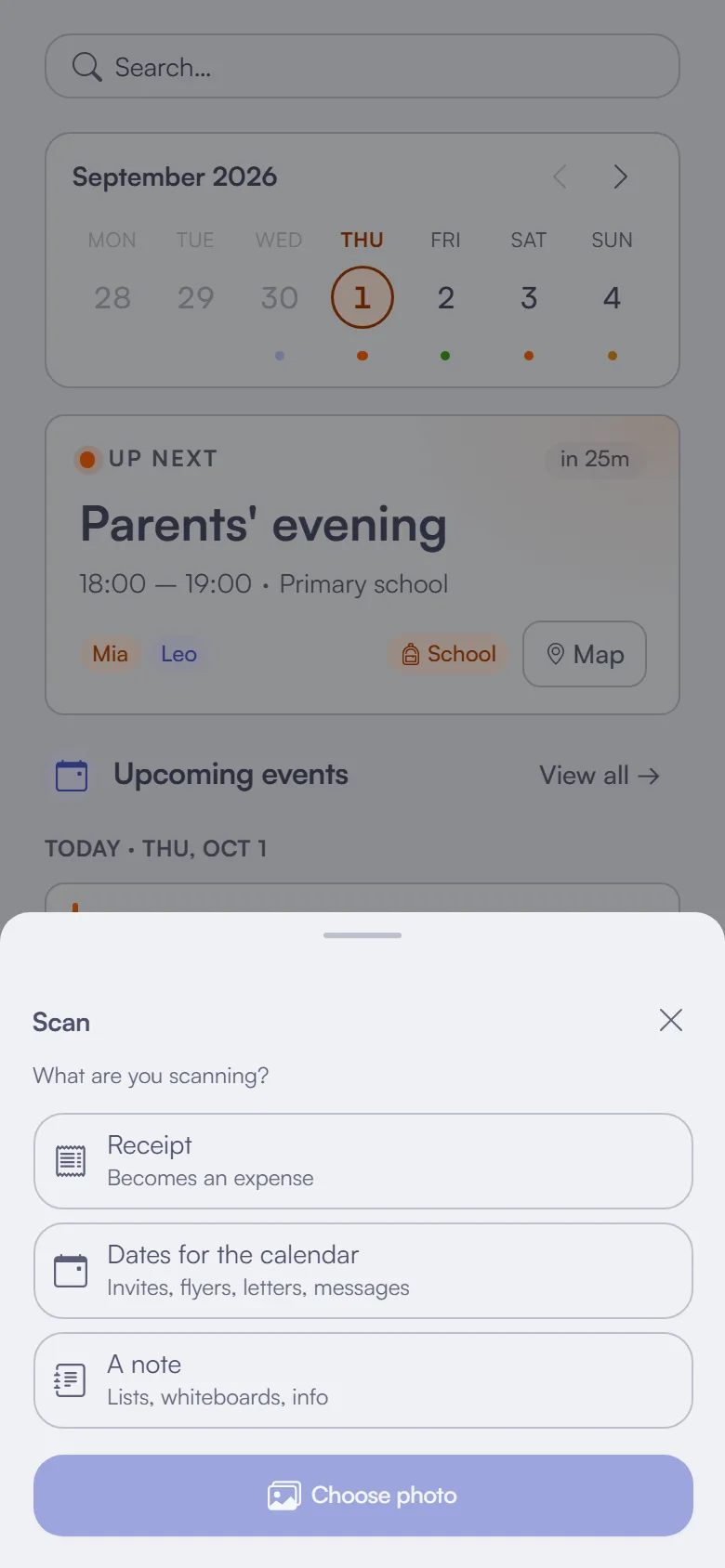
- Open the scanner. On a phone, tap + and then Scan. On a computer, use Scan on the Events page, or simply paste a screenshot with Ctrl+V or drag an image onto the page.
- Choose "Dates for the calendar", then take a photo or pick one from your photos.
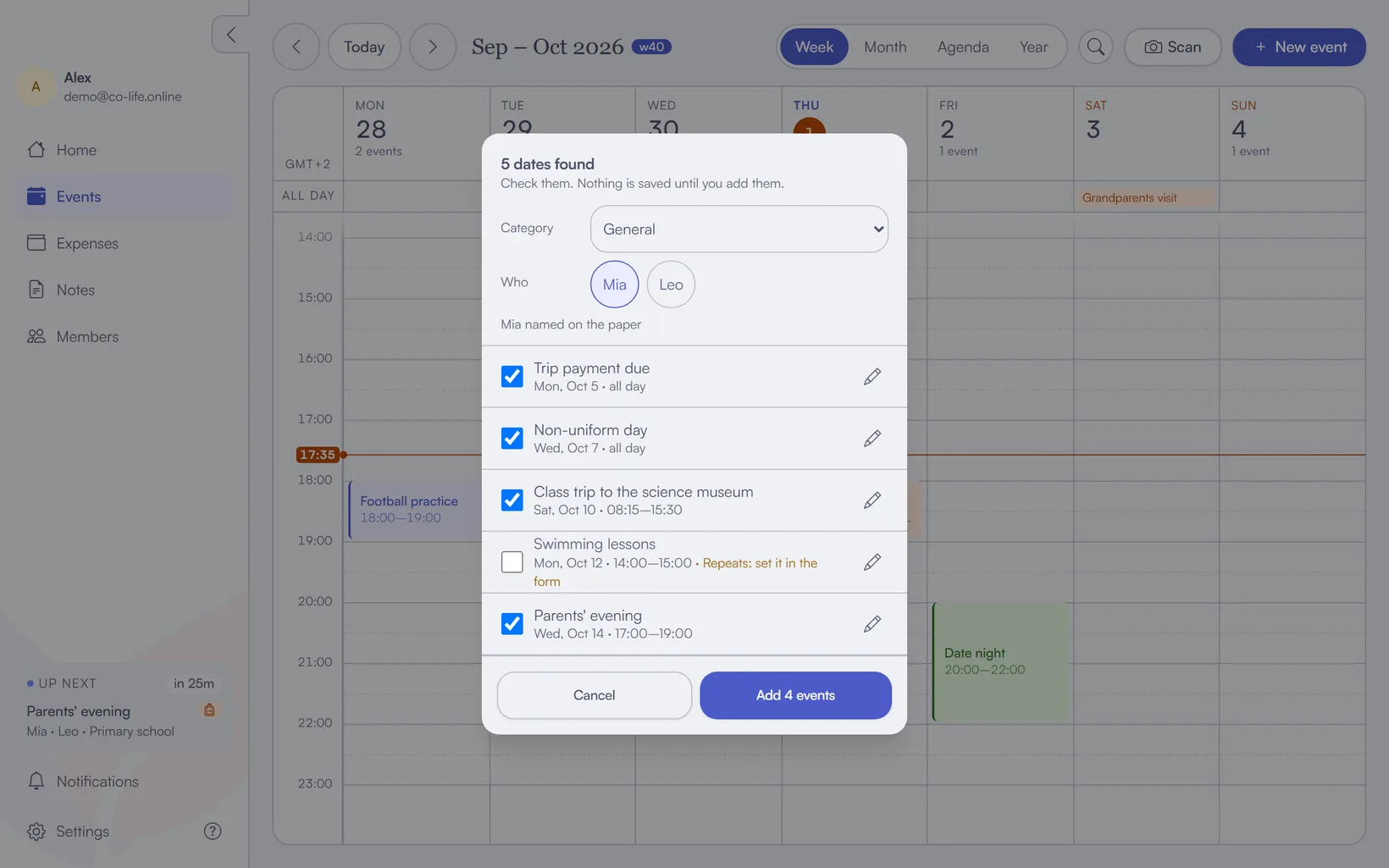
- Check the list. co-life reads every date it finds into a list, and nothing is saved yet. Untick anything you don't want, and tap Edit on a row to fix a time or add a location.
- Say who it is for. Pick the category and the people once for the whole batch. If the letter names one of your children, they are already selected.
- Add them. The events land in the shared calendar together, and the rest of the household gets one notification rather than six.
A few details matter on school paper in particular. A date with no year, like "Friday 14 March", is read as the next one coming up, and dates that have already passed are left out. Anything that repeats, like "swimming every Wednesday", comes in as a single event, unticked and marked as repeating, so you set the repeat yourself instead of trusting a guess. And the photo is read once and never stored. Only the events you keep are saved.
If you're on a recent iPhone, Apple's own Visual Intelligence can turn a poster into a calendar event: point the camera at it and tap Add to Calendar. It handles one event at a time and puts it in your own calendar, so it is great for a single flyer and less so for a three-page term letter.
Put the dates where both of you can see them
Here is the part the other guides skip. Getting a date into a calendar is the easy half. The hard half is that the person who opens the letter becomes, without anyone deciding it, the household's school calendar. They know about the trip, the deadline and the early finish. The other parent finds out on the morning, usually from a child.
That is the mental load in its plainest form: not the work of the trip, but the remembering around it. The fix is not to remember harder. It is to make sure every school date lands in one calendar you both look at, so knowing about it stops being one person's job.
In practice, that means one rule: whoever opens the letter scans it, and nobody retypes it. With a shared household calendar where each person has their own colour, the swimming kit, the trip and your own Thursday plans sit side by side, and a clash is something you see a week early instead of discovering at the school gate.
If you also connect co-life to Google Calendar, everything you scan shows up there too.
What else is out there
You have options here, and some are free.
- Apple's Visual Intelligence is built into recent iPhones (iPhone 15 Pro and later with Apple Intelligence turned on). It is excellent for one event from a poster, and it adds to your personal calendar.
- Photo-to-calendar apps like Calendara and several App Store scanners turn a photo or PDF into events in your existing Google or Apple calendar. They are good at the reading part, and they leave the "who else needs to see this" part to you.
- Skylight's Magic Import does the same for the Skylight wall calendar, from a photo or a forwarded email, as part of the paid Calendar Plus plan.
co-life's angle is the shared one: scanning, the household calendar, notes and expenses in one place for everyone who lives there. If your only problem is typing dates from a single flyer, the built-in iPhone feature may be all you need.
The short version
Subscribe to a school feed if there is one. Import the term dates once. Photograph everything else, and make sure all of it ends up in the calendar both of you check. The dates that cause trouble are rarely the term dates. They are the letters.
If you'd like that last part handled for you, with letters, flyers and screenshots turned into checked events in one shared household calendar, give co-life a try. It's free to start, EU-hosted, and made for everyone who shares a home.