 co-life
If your plans are scattered across a Google account, an Apple calendar, and an Outlook one at work, you don't need to abandon any of them — you need to sync your Google, Apple, and Outlook calendars into one place you both actually look at. The trick most guides miss is that "sync" isn't one thing. Some calendars can flow both ways; others should only ever be read. Get that distinction right and everything lines up. Get it wrong and you'll spend a month wondering why events keep disappearing.
This guide covers exactly that: what sync versus subscribe really means, what each of Google, Apple, and Outlook can actually do, and the one mistake that breaks the whole setup.
First: sync vs subscribe (this is the whole game)
These two words get used interchangeably, and that's the root of most calendar mess.
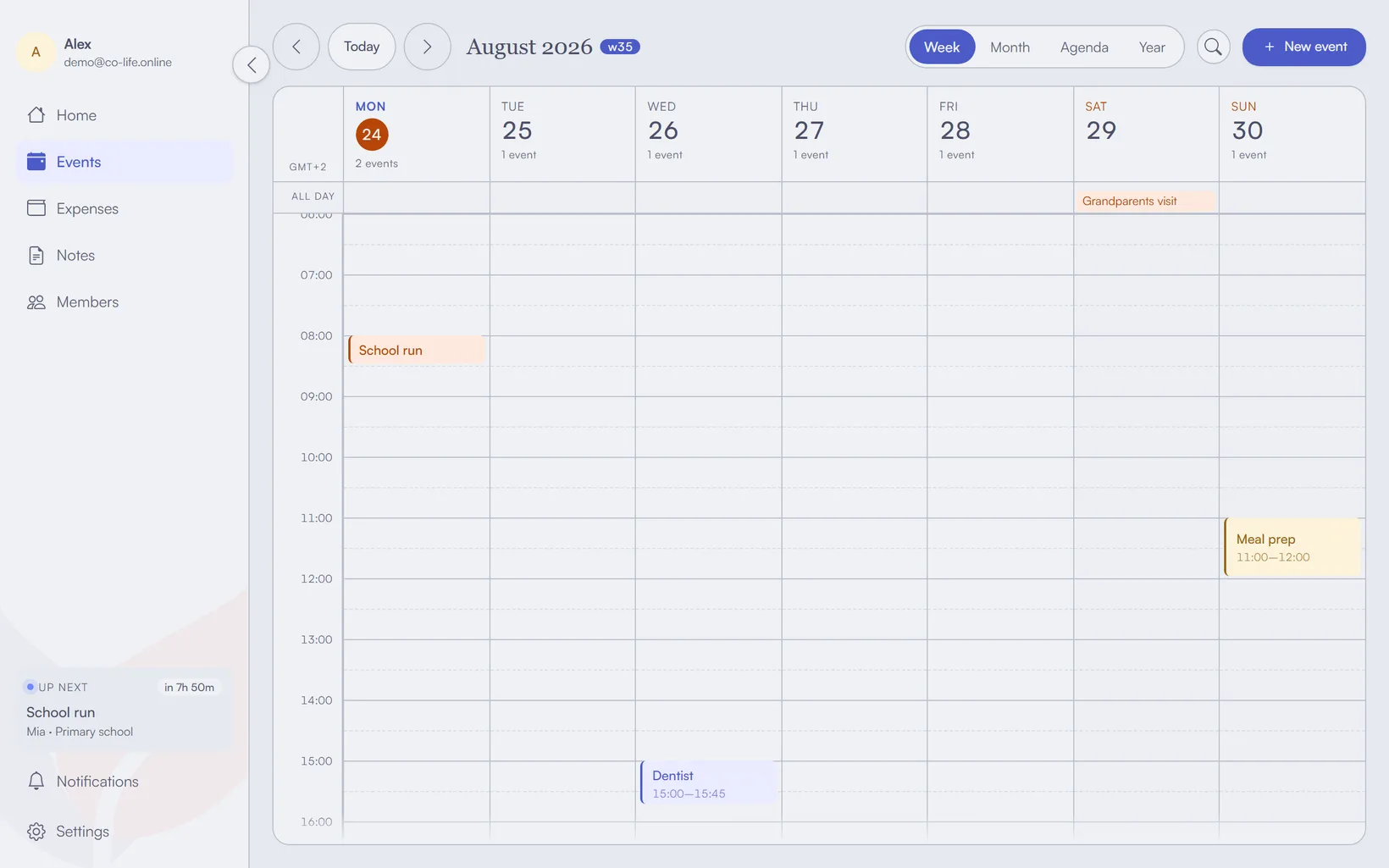
- Sync is two-way. An event you add in either place appears in both, and editing one edits the other. This is what you want for the calendar you and your household actively add to.
- Subscribe is one-way and read-only. You see the events, but you can't change them from that side. This is what you want for a calendar you only need to glance at — like showing your shared plans inside a work Outlook you don't want to write household life into.
The rule of thumb: sync the calendar you both edit, subscribe to the ones you only need to see. If you're setting this up so two people stop double-booking each other, the share-one-calendar guide covers the couples side; this one is about wiring the accounts together underneath it.
Google Calendar — two-way sync
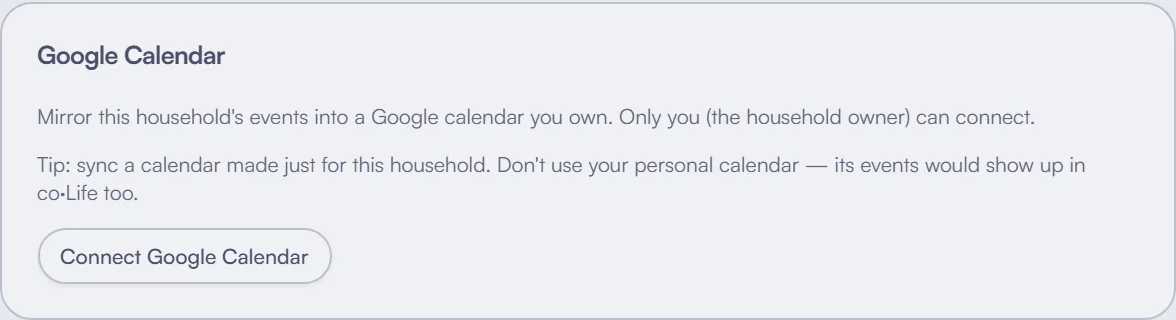
Google is the one that genuinely does two-way, so make it your hub.
Connect your Google account to co-life once, and from then on it's a real two-way sync: an event added in co-life shows up in Google Calendar, and an event added in Google shows up in co-life. Edit or move it on either side and the other follows. Under the hood it's last-write-wins — whichever side you changed most recently is the one that sticks — so there's no fighting, no duplicate ghosts, and no "which app is the real one."
This is why Google makes the best hub: it's the account most people already live in, and it's the one that can flow both directions.
Apple Calendar — subscribe (read-only)
Apple Calendar can't do the same clean two-way sync with a third-party household calendar, and trying to force it is where people get burned. So don't fight it — subscribe instead.
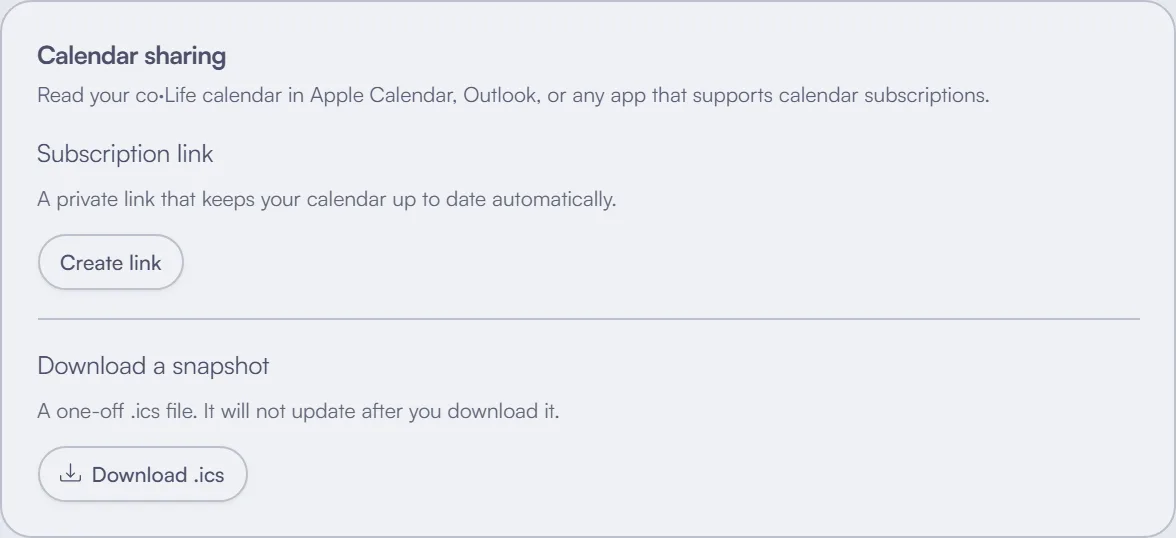
co-life gives you a private calendar feed (a secret .ics link). Add that link as a subscribed calendar in Apple Calendar, and your shared household plans appear right alongside your personal ones on your iPhone and Mac — read-only, always current. You add and edit household events in your Google-synced hub; Apple just shows them. That's exactly what you want on the device you carry: the plans visible everywhere, edited in one place.
The path, since every guide to this seems to skip it:
- On a Mac — Calendar → File → New Calendar Subscription → paste the link → Subscribe.
- On an iPhone — Settings → Calendar → Accounts → Add Account → Other → Add Subscribed Calendar → paste the link. Apple moves this around between iOS versions; searching Settings for "subscribed" finds it wherever it has landed.
- Easiest of all — co-life offers the same feed as a
webcal://link. Tapping that on an iPhone or Mac opens the subscribe dialog directly, with the URL already filled in. One exception worth knowing: Google Calendar rejectswebcal://outright and needs thehttps://form of the same link, which co-life gives you alongside it.
Outlook — subscribe (read-only)
Outlook works the same way as Apple, and for the same reason. Take the same private .ics feed and add it in Outlook as a subscribed internet calendar. Your household plans then sit next to your work meetings without you ever writing personal life into a work account — you just see "already busy Thursday evening" when you're booking a meeting, which is the entire point.
Where to put it:
- Outlook on the web — Calendar → Add calendar → Subscribe from web → paste the link → Import.
- Classic desktop Outlook — File → Account Settings → Account Settings → the Internet Calendars tab → New.
Because it's a subscribe, nothing you do in Outlook touches the shared calendar. It's a window, not a door.
How often does a subscribed calendar actually refresh?
Not when you want it to. This is the single most useful thing to know about subscribing, and no guide seems to say it: a subscribed calendar is a cached copy, and each platform re-fetches the feed on its own schedule.
- Google refreshes external
.icssubscriptions on a cycle of its own — commonly several hours, sometimes the best part of a day. There is no refresh button, and no setting to speed it up. - Apple is the generous one and lets you choose. On a Mac: right-click the subscribed calendar → Get Info → Auto-refresh, with options from every five minutes upward. That choice follows the calendar to your iPhone.
- Outlook sits between the two and generally re-fetches a few times a day.
So if you add an event and it has not appeared on the other device ten seconds later, nothing is broken — you are looking at a copy that has not been re-fetched yet. Anything you need to see immediately belongs in the calendar that syncs two-way, not in one you subscribed to. That is the practical reason the hub matters, beyond the theory of it.
Bringing your old events across
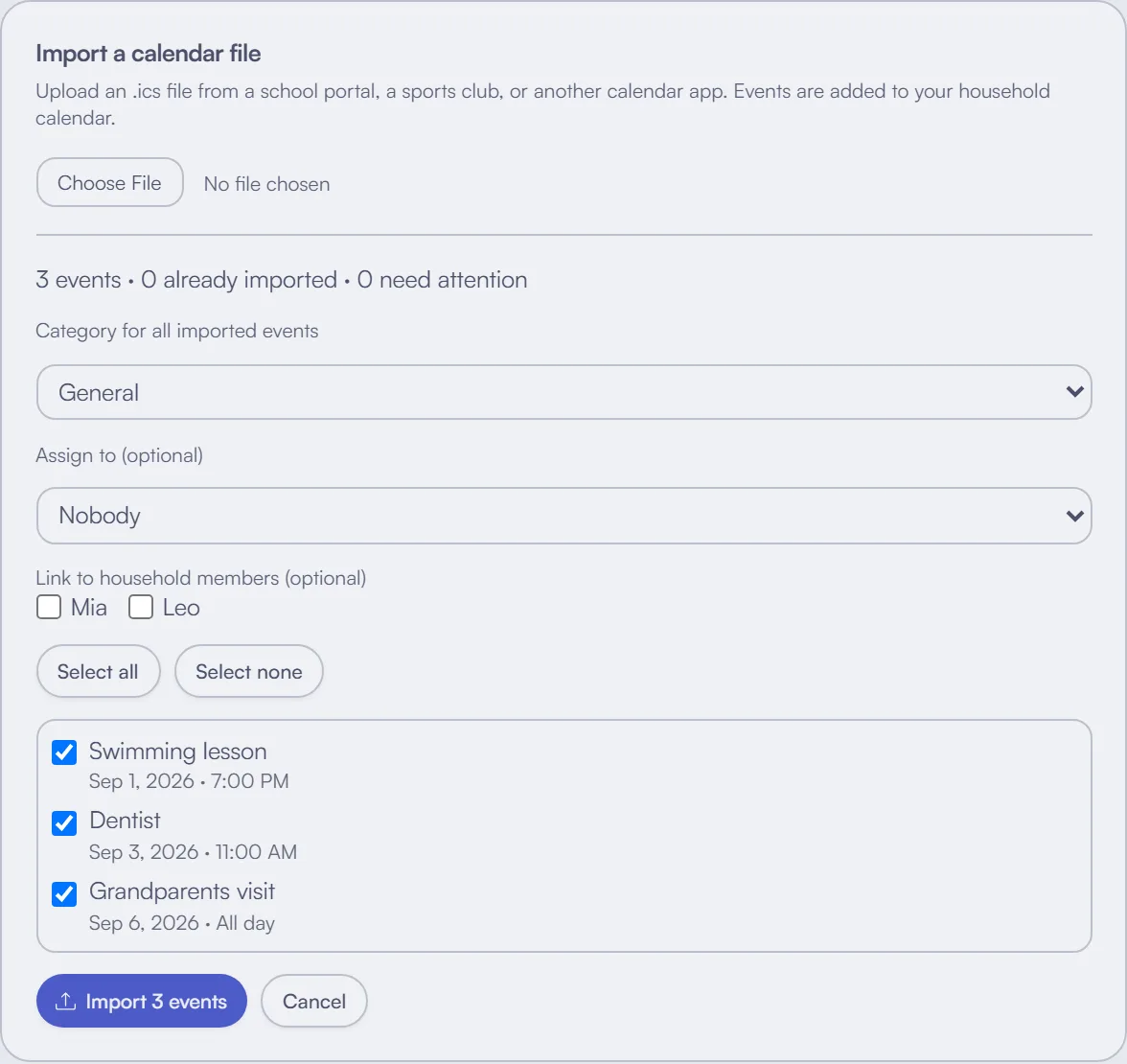
Syncing and subscribing handle everything going forward. For the events already sitting in an old calendar, there's a one-off move: export them as an .ics file from the old calendar and import that file once into co-life. It's a single migration — bring the history over, then let sync and subscribe keep everything current from there. You don't need to re-enter a year of birthdays and standing appointments by hand.
The one mistake to avoid
Here's the trap that causes almost every "my event disappeared" story: syncing the same calendar two different ways at once — say, two-way syncing it on your phone while also subscribing to it on your laptop, or connecting the same account through two apps. Now two systems both think they're in charge, and they'll quietly undo each other.
Keep it clean: one hub that syncs two-way (Google), and everything else subscribes read-only. One calendar is the source of truth; the rest are windows onto it. Do that and events stop vanishing, because only one place is ever allowed to change them.
When it doesn't work
Four failures cover almost everything:
- Every event appears twice. You are syncing and subscribing to the same calendar. Pick one and remove the other — this is the mistake above, wearing a different hat.
- Events are an hour or two out. Timezone, not sync. The feed carries timezone information with each event, so check the timezone set on the device showing them wrong before you blame the feed.
- Nothing appears at all. The link was cut short on paste, which happens constantly with long feed URLs. Copy it again and paste the whole thing, including the
.icsat the end. - It worked, then stopped. The feed link was regenerated. Any private feed URL is a secret, so revoking it is the right move if it leaks — but every device that subscribed to the old one needs the new link.
If you only want the accounts mirrored
Worth being clear about what this guide is not. If your problem is simply that your work Outlook and your personal Google do not see each other — no household layer, no shared plan, just the accounts talking — that is a different product. CalendarBridge, OneCal and SyncGene do exactly that, and Zeeg covers similar ground with scheduling on top. Any of them will mirror accounts more directly than a household calendar will.
This guide is about the other problem: two people who need one shared plan, and who happen to live in different calendar apps. If that is not you, use one of the above.
If you can only remember one line from this guide, make it this: sync one calendar, subscribe to the rest. The disappearing-event bug is almost always two calendars both trying to be the boss.
If you'd like a household calendar built to sit at the centre of exactly this — one hub that syncs two-way with Google and hands Apple and Outlook a clean read-only feed — give co-life a try. It's free to start, EU-hosted, and made for a household sharing one plan across whatever calendars they already use.